 Watchletic
Structured workouts with Engo on Apple Watch
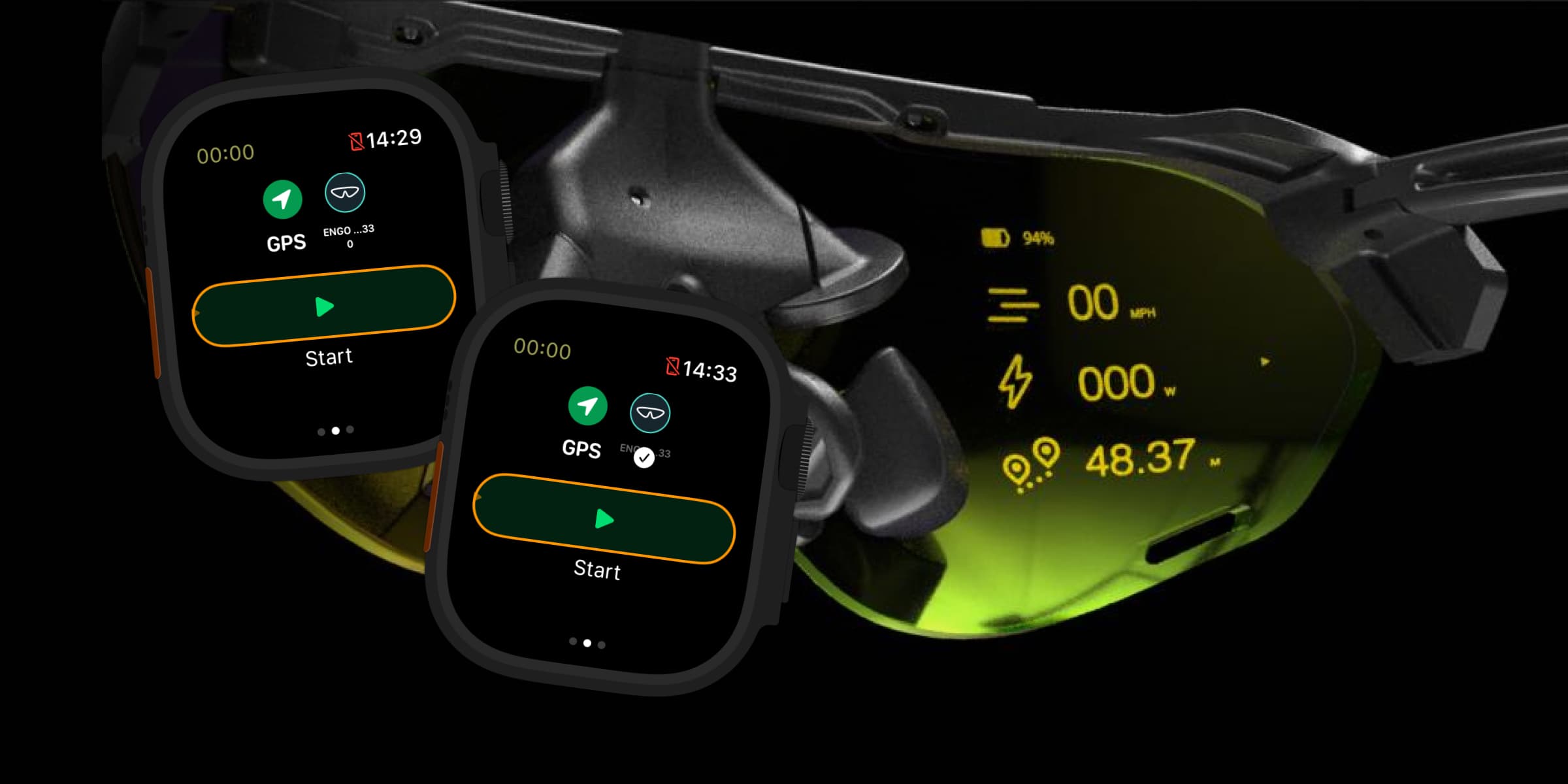
With Engo and Apple Watch, you can keep the current target and remaining interval time in view during a structured workout.
With Watchletic, you can create interval workouts on your phone or directly on your watch, then run them on Apple Watch while your Engo glasses mirror your workout layout.
Why Engo makes structured workouts better
Structured workouts are all about knowing two things at a glance:
- what your current step is asking you to do
- how far or how long remains until the next step
If you keep looking down at your wrist every few seconds, that breaks your rhythm. With Engo, the data stays in your field of view, which makes it easier to hold your target and stay focused on the run itself.
This is especially useful for workouts like:
- track intervals
- threshold sessions
- fartlek workouts
- power-based workouts
- heart rate controlled workouts
Create intervals in Watchletic
Watchletic lets you create structured workouts with warmup, repeats, recoveries, and cooldowns.
You can set both goals and targets for the different parts of the workout. For example, you can build a session like:
- 1 km warmup
- 8 x 500 m intervals
- 1 minute recovery between each repeat
- 5 minute cooldown
And then assign a target type to the hard parts depending on how you want to train, such as:
- Pace
- Speed
- BPM
- Heart Rate Zone
- Running Power
- RPE
So whether you want to hold a pace, stay inside a heart rate range, or follow a running power target, the workout can be built around that.
If you want a full walkthrough of creating interval workouts, read this post too: Creating custom interval workouts on Apple Watch.
What shows on Engo during the workout
When you start a workout in Watchletic, the app will show the Engo device and either connect automatically or let you connect there if needed.
During the workout, Engo mirrors your Watchletic workout layout. That means the values you choose to show in your first layout screen on the watch are also what you will see on the glasses.
This is what makes Engo especially useful for structured sessions. You can configure your layout around the values that matter most during intervals, such as:
- current pace or running power
- current heart rate
- elapsed duration
- completed distance
- progress toward the current goal
- values related to your current target
Instead of switching attention between the road and your wrist, you keep the workout guidance in front of you.
Current targets and goals on watch and glasses
One of Watchletic's strengths compared to more limited workout setups is that it is designed to make current targets and goals easy to see.
That matters during intervals. If your current step says to run for 500 meters at a certain pace, or for 3 minutes at a power target, you want to understand that instantly.
With Watchletic, that information is available on the watch, and because Engo mirrors the first layout screen, it can also be visible on the glasses during the workout.
So instead of just seeing generic live data, you can set things up around the actual question you have in the moment: What am I supposed to do right now, and how much is left?
A practical tip for layouts
If your Watchletic layout has multiple screens, Engo currently mirrors the first screen only.
The simplest way to use that is to put the values most important for your intervals on the first screen, and keep secondary information on a second screen that you can still scroll to on the watch.
For structured workouts, that often means putting your most important guidance metrics first and leaving less important stats for later.
How to get started
To use Engo for structured workouts in Watchletic:
- When you first get Engo, use the ActiveLook app to set up the glasses so the display is positioned correctly and easy to see.
- Open Watchletic on Apple Watch and go to Settings > Bluetooth > Running (or the sport you want to use).
- Press Search and connect Engo.
- Create your workout in Watchletic on your phone or watch.
- Start the workout from Watchletic on Apple Watch.
Once connected, Watchletic will mirror your chosen workout layout to the glasses while you run the structured workout from the watch.
Watchletic lets you create the workout, run it on Apple Watch, and keep the current targets and goals visible on both the watch and the glasses.
If you also want to use Engo together with Stryd, read more here: Use Engo 2 with Stryd on Apple Watch.


It's free to get started.